EMC D-PE-OE-23 - Questions & Answers
Free preview · every answer includes a full explanation
Product page: https://prepkeys.com/d-pe-oe-23.html
A customer acquired six R750 servers. They must add these servers to their existing R760 iDRAC Group but are encountering errors.
What is the reason for the errors?
R750 iDRACs firmware is out of date.
R750 iDRACs are not running the same version of firmware.
15G and 16G servers cannot be in the same group.
The feature requires iDRAC Enterprise.
Understanding iDRAC Group Management and Compatibility
Server Management and Configuration Tools (14%)
Define the function of the iDRAC, login procedures, licensing, and connection methods
Explain the management interface options - LCC, racadm, OMSA, iSM, OME
System Administration (18%)
Configure BIOS, Storage, virtual media, networking, user access, lockdown mode, and group management
Scenario Analysis
The customer has acquired six Dell PowerEdge R750 servers and wants to add them to an existing iDRAC Group that currently contains R760 servers. However, they are encountering errors during this process.
Understanding Dell Server Generations
PowerEdge R750: Part of the 15th Generation (15G) servers.
PowerEdge R760: Part of the 16th Generation (16G) servers.
iDRAC Group Manager Limitations
iDRAC Group Manager allows administrators to manage multiple servers from a single interface.
Important Limitation: Servers of different generations cannot be grouped together in iDRAC Group Manager.
This is due to differences in firmware, hardware capabilities, and iDRAC features between server generations.
Impact: Attempting to add 15G servers (R750) to a group containing 16G servers (R760) will result in errors.
Evaluation of Options
Option A: R750 iDRACs firmware is out of date
Analysis: While outdated firmware can cause issues, it is not the primary reason here. Firmware updates would not resolve the incompatibility between different server generations.
Option B: R750 iDRACs are not running the same version of firmware
Analysis: Similar to Option A, firmware version mismatches can cause problems but not errors related to grouping different generations.
Option C: 15G and 16G servers cannot be in the same group
Correct Answer: This is the primary reason for the errors encountered.
Option D: The feature requires iDRAC Enterprise
Analysis: Since the customer already has an existing iDRAC group with R760 servers, they likely have the necessary licensing.
Dell Operate References
Server Management and Configuration Tools (14%)
Emphasizes understanding iDRAC functionalities and limitations.
System Administration (18%)
Highlights the importance of group management and its constraints.
Conclusion
The errors occur because iDRAC Group Manager does not support grouping servers from different generations. The customer cannot add 15G servers (R750) to a group that contains 16G servers (R760).
When does configuration validation run?
Dell diagnostics is run
Entering the BIOS
Loading into Lifecycle Controller
Each time the host powers on
Understanding Configuration Validation in Dell PowerEdge Servers
Server Troubleshooting (32%)
Explain Configuration Validation, crash capture, and minimum to POST
What is Configuration Validation?
Configuration Validation is a diagnostic process performed by Dell PowerEdge servers to ensure that all hardware components and firmware configurations are compatible and functioning correctly. This process checks for any mismatches or errors in the server's hardware configuration that could prevent the system from booting properly.
When Does Configuration Validation Run?
Each Time the Host Powers On:
Configuration Validation runs automatically during the Power-On Self-Test ( POST ) sequence every time the server is powered on or rebooted.
The server's BIOS performs a series of checks to validate the hardware configuration, ensuring that all components are present, properly connected, and compatible.
If any discrepancies or issues are detected, the server may halt the boot process and display error messages or indicators to alert the administrator.
Importance of Configuration Validation at Power-On:
Hardware Integrity:
Verifies that CPUs, memory modules, storage devices, and other peripherals are correctly installed and operational.
Firmware Compatibility:
Ensures that firmware versions are compatible across components, which is crucial for system stability.
Preventing Boot Failures:
Identifies configuration issues early to prevent system crashes or data loss.
Explanation of Options
Option A: Dell diagnostics is run
Analysis:
Dell Diagnostics is a set of utilities that can be run manually to test hardware components.
It is not automatically executed unless initiated by an administrator.
Conclusion: Incorrect.
Option B: Entering the BIOS
Analysis:
While entering the BIOS allows administrators to view and modify system settings, configuration validation is not specifically triggered by accessing the BIOS.
Conclusion: Incorrect.
Option C: Loading into Lifecycle Controller
Analysis:
The Lifecycle Controller is a management tool for deploying, updating, and configuring servers.
Configuration validation is not exclusively run when accessing the Lifecycle Controller.
Conclusion: Incorrect.
Option D: Each time the host powers on Analysis:
Configuration validation is inherently part of the POST sequence that runs every time the server powers on.
Conclusion: Correct Answer .
Dell Operate References
Server Troubleshooting (32%)
Explain Configuration Validation, crash capture, and minimum to POST:
Understanding when and how configuration validation occurs is essential for troubleshooting boot-related issues.
Recognizing that this process runs at power-on helps administrators diagnose hardware problems early in the boot sequence
System Administration (18%)
Verify health status and iDRAC license:
Regular health checks and monitoring complement the automated configuration validation performed during boot.
Conclusion
Configuration Validation runs each time the host powers on as part of the POST process. This ensures that any hardware or configuration issues are detected immediately, allowing administrators to address them promptly and maintain system stability.
Which two memory settings optimize a PowerEdge 16G server to support VMware ESXi?
Near Balanced Configuration and Dell Fault Resilient Mode
Balanced Memory Configuration and Dell Fault Resilient Mode
Balanced Memory Configuration and Optimizer Mode
Near Balanced Configuration and Optimizer Mode
Optimizing Memory Settings for VMware ESXi on a Dell PowerEdge 16G Server
Server Components (26%)
Define the different processor, memory options, and memory configurations
Understanding Memory Configuration Options
When configuring a Dell PowerEdge 16th Generation (16G) server to support VMware ESXi, it's crucial to optimize memory settings for performance and reliability. The two memory settings that best optimize the server for VMware ESXi are:
Balanced Memory Configuration
Optimizer Mode
1. Balanced Memory Configuration
A balanced memory configuration ensures that memory modules (DIMMs) are evenly distributed across all memory channels and CPUs. This maximizes memory bandwidth and performance by enabling the server to utilize all available memory channels effectively.
Benefits for VMware ESXi:
Improved Performance: Balanced configurations reduce memory latency and increase throughput, which is essential for virtualization workloads.
Enhanced Stability: Ensures consistent performance across virtual machines (VMs) by preventing memory bottlenecks.
References:
Server Components (26%): Emphasizes the importance of memory configurations and their impact on server performance.
2. Optimizer Mode
Optimizer Mode is a BIOS setting that configures the memory for optimal performance. It arranges the
memory in a way that prioritizes speed and efficiency, typically by disabling features like memory mirroring or sparing that can reduce performance.
Benefits for VMware ESXi:
Maximum Memory Performance: Optimizer Mode allows the server to achieve the highest possible memory speeds.
Ideal for Virtualization: VMware ESXi benefits from fast memory access, which improves VM performance and responsiveness.
Dell Operate Reference:
System Administration (18%): Configuring BIOS settings is critical for optimizing server operations, particularly for specific workloads like virtualization.
Why the Other Options Are Less Optimal
Near Balanced Configuration:
This configuration is close to balanced but may have slight imbalances due to uneven DIMM distribution.
Impact: Can lead to suboptimal performance compared to a fully balanced configuration.
Dell Fault Resilient Mode:
A memory mode that reserves a portion of memory for critical applications to protect against memory errors.
Impact: Reduces available memory for VMs and can decrease overall performance, which is not ideal for VMware ESXi environments that require maximum memory resources.
Conclusion
For optimizing a Dell PowerEdge 16G server to support VMware ESXi, selecting Balanced Memory Configuration and Optimizer Mode ensures the best performance and resource utilization. These settings maximize memory bandwidth and speed, which are critical for virtualization workloads.
Exhibit.
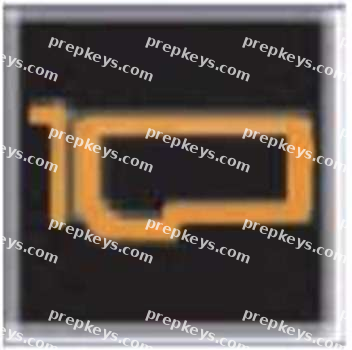
A customer notices that an indicator on the left control panel of the PowerEdge Server has turned solid amber.
What does this indicate?
PCIe card is present.
PCIe card performing a firmware update.
PCIe card temperature is normal.
PCIe card experiences an error.
Dell PowerEdge servers are equipped with various LED indicators on the left control panel to provide immediate visual feedback about the server's status and component health. These indicators help in quickly identifying and troubleshooting issues without needing to access the system logs immediately.
Analyzing the Visual Indicators (Server Troubleshooting - 32%)
As per the "Server Troubleshooting" section, one of the key skills is to "Analyze the visual indicators on server components - system ID, PSU, and BLINK."
Color Codes and Their Meanings
Solid Green Light: Indicates normal operation.
Blinking Green Light: Indicates activity (such as data transfer).
Solid Amber Light: Indicates a fault or error condition.
Blinking Amber Light: Indicates a critical error or failure.
Application to the PCIe Card Indicator
In this scenario, the customer notices that an indicator on the left control panel has turned solid amber .
Specifically, this indicator is associated with the PCIe card.
Option A: "PCIe card is present."
Presence is usually indicated by a solid green light, not amber.
Option B: "PCIe card performing a firmware update."
Firmware updates are often indicated by blinking lights but typically not solid amber.
Option C: "PCIe card temperature is normal."
Normal temperature conditions would not trigger an amber light; instead, they would maintain a solid green
light.
Option D: "PCIe card experiences an error."
A solid amber light directly correlates with an error condition in the component.
Conclusion
Given the meaning of the solid amber indicator and its association with error conditions in Dell PowerEdge servers, the correct interpretation is that the PCIe card is experiencing an error.
Dell Operate References
Server Components (26%): Understanding server components like PCIe cards is crucial.
Server Troubleshooting (32%): Analyzing visual indicators is a key troubleshooting step.
Analyze the visual indicators on server components: Knowing the significance of LED colors aids in swift problem identification.
An administrator is in a non-secure location with a high latency connection.
What option should be used to recover a PowerEdge server using an existing server profile?
iDRAC
Redfish
IPMI
RACADM
Selecting the Appropriate Recovery Tool
Server Management and Configuration Tools (14%)
Explain the management interface options - LCC, racadm, OMSA, iSM, OME
Scenario Analysis
Constraints:
Non-secure location: Security of the connection is a concern.
High latency connection: Requires a tool that operates efficiently over slow networks.
Objective: Recover a PowerEdge server using an existing server profile.
Option Evaluations
Option A: iDRAC
Analysis: While iDRAC provides remote management, accessing it via a web interface may be slow and less secure in high latency and non-secure environments.
Option B: Redfish
Analysis: Redfish uses HTTPS, which is secure but may not perform well over high latency connections and requires more overhead.
Option C: IPMI
Analysis: IPMI lacks robust security features and is not recommended in non-secure locations.
Option D: RACADM
Correct Answer
Advantages:
Secure: Can use SSH for secure command-line access.
Efficient: Command-line interface minimizes bandwidth usage, suitable for high latency.
Powerful: Allows full management of the server, including applying existing server profiles.
Scriptable: Enables automation and faster recovery processes.
Understanding RACADM
RACADM (Remote Access Controller Admin):
A command-line utility for managing Dell servers via iDRAC.
Supports both local and remote management.
Ideal for automated scripts and low-bandwidth situations.
Dell Operate References
Server Management and Configuration Tools (14%)
Emphasizes understanding different management tools and their appropriate use cases
System Administration (18%)
Covers configuring and managing servers in various environments.
Conclusion
Given the need for a secure and efficient tool in a high latency and non-secure location, RACADM is the optimal choice for recovering the PowerEdge server using an existing server profile.
Which option is a granular user privilege configurable in the iDRAC9?
Access virtual console
Readonly
Edit logs
Change dashboard view
Understanding Granular User Privileges in iDRAC9
System Administration (18%)
Configure BIOS, Storage, virtual media, networking, user access, lockdown mode, and group management
Granular User Privileges in iDRAC9 iDRAC9 provides the ability to assign specific privileges to user accounts, allowing for fine-grained control over what actions users can perform.
Explanation of Options
Option A: Access virtual console
Access to the virtual console is a specific privilege that can be granted or denied to individual users in iDRAC9. This allows administrators to control who can remotely access the server's console.
Conclusion: Correct Answer .
Option B: Readonly
The Readonly privilege is a role that allows users to view settings without making changes. It is not considered a granular privilege but a predefined user role.
Conclusion: Not as granular as specific privileges.
Option C: Edit logs
iDRAC9 does not provide a specific privilege to edit logs, as logs are critical records that should not be altered for security and auditing purposes.
Conclusion: Incorrect.
Option D: Change dashboard view
Changing the dashboard view is a user interface preference and not typically a privilege that is controlled or assigned in iDRAC9.
Conclusion: Incorrect.
Dell Operate References
System Administration (18%)
Configure user access: Understanding how to assign and manage user privileges in iDRAC9.
Server Management and Configuration Tools (14%)
Define the function of the iDRAC, login procedures, licensing, and connection methods: Emphasizes the importance of controlling access to management functions.
Conclusion
Access virtual console is a granular user privilege configurable in iDRAC9, allowing administrators to control remote console access on a per-user basis.
What is a characteristic of Dell PowerEdge server out-of-band management?
Cannot manage a powered off device
Gives firmware update access to all users
Network connection separate from data source
Requires an operating system level agent
Understanding Dell PowerEdge Server Out-of-Band Management
Server Management and Configuration Tools (14%)
Define in-band and OOB management and at-the-box-management
What is Out-of-Band (OOB) Management?
Out-of-band management refers to the ability to manage and monitor a server independently of the operating system or primary network interfaces. Dell PowerEdge servers utilize the Integrated Dell Remote Access Controller (iDRAC) for OOB management.
Characteristics of Out-of-Band Management:
Independent Operation:
OOB management operates independently of the server's operating system. It remains functional even if the server is powered off (as long as it is connected to a power source) or the operating system is unresponsive.
Dedicated Network Connection:
OOB management uses a network connection separate from the data network . This is typically achieved via a dedicated management port on the server, ensuring that management traffic does not interfere with data traffic.
Option C reflects this characteristic accurately.
No Need for Operating System Agents:
OOB management does not require any software agents running on the operating system. Management tasks are performed directly through the iDRAC hardware.
Option D is incorrect because OOB management does not require an OS-level agent.
Remote Management Capabilities:
Allows administrators to perform tasks such as monitoring hardware status, configuring settings, updating firmware, and even powering the server on or off remotely.
Explanation of Options:
Option A: Cannot manage a powered off device
Incorrect: OOB management allows for the management of powered-off devices as long as the iDRAC is receiving power.
Option B: Gives firmware update access to all users
Incorrect: Access to firmware updates and other critical functions is controlled via user permissions within iDRAC. Not all users have equal access.
Option C: Network connection separate from data source
Correct: OOB management uses a dedicated network interface, separate from the server's primary data network interfaces.
Option D: Requires an operating system level agent
Incorrect: OOB management is independent of the operating system and does not require any OS-level agents.
References:
Server Management and Configuration Tools (14%)
Define in-band and OOB management and at-the-box-management: Understanding the differences between in-band (requiring OS-level interaction) and out-of-band management is crucial for effective server administration.
Conclusion:
Dell PowerEdge server out-of-band management is characterized by the use of a network connection separate from the data source , allowing for independent and remote management of the server hardware without relying on the operating system.
A system administrator plans to use iDRAC Direct to use features such as RACADM and WSMan.
What is used to make the connection?
USBC
Micro USB
Mini USB
USBA
Understanding iDRAC Direct and Connection Methods
Server Management and Configuration Tools (14%)
Define the function of the iDRAC, login procedures, licensing, and connection methods iDRAC Direct Overview
iDRAC Direct provides a direct connection to the Integrated Dell Remote Access Controller (iDRAC) using a
USB interface.
Purpose: Allows administrators to perform management tasks locally without needing network access.
Features Accessed via iDRAC Direct:
RACADM: Remote Access Controller Admin CLI tool for managing iDRAC settings.
WS-Man: Web Services Management protocol for remote management.
Connection Interface
Physical Connection: Requires a USB cable connected between the administrator's laptop and the server's iDRAC Direct port.
Type of USB Port Used: Dell PowerEdge servers typically use a Micro USB port for iDRAC Direct connections.
Explanation of Options
Option A: USB-C
USB-C is a newer USB standard with a reversible connector. As of the knowledge cutoff in 2023, Dell servers primarily use Micro USB for iDRAC Direct, not USB-C.
Conclusion: Incorrect.
Option B: Micro USB
Correct Answer: The iDRAC Direct port uses a Micro USB interface.
Option C: Mini USB
Mini USB is an older standard, larger than Micro USB, and not commonly used in modern servers for management interfaces.
Conclusion: Incorrect.
Option D: USB-A USB-A refers to the standard rectangular USB port found on most computers. The server's iDRAC Direct port does not use USB-A.
Conclusion: Incorrect.
Dell Operate References
Server Management and Configuration Tools (14%)
Highlights the importance of understanding connection methods to iDRAC.
Define the function of the iDRAC, login procedures, licensing, and connection methods: Emphasizes knowledge of physical interfaces used for management.
Conclusion
To use iDRAC Direct features like RACADM and WS-Man, the system administrator needs to connect via the Micro USB port on the server.
How does the host iDRAC communicate when using the Group Manager feature?
IPv6
Telnet
SSH
Redfish
Understanding iDRAC Group Manager Communication
Server Management and Configuration Tools (14%)
Explain the management interface options - LCC, racadm, OMSA, iSM, OME
What is iDRAC Group Manager?
iDRAC Group Manager allows administrators to manage multiple iDRAC-enabled servers as a single group.
Purpose: Simplifies management tasks by enabling actions to be performed across multiple servers simultaneously.
Communication Protocol Used
Redfish Protocol
Redfish is a modern, RESTful API designed for server management.
Usage in iDRAC Group Manager: iDRAC instances communicate with each other using the Redfish protocol to share information and coordinate management actions.
Benefits:
Secure communication over HTTPS.
Supports JSON data format, making it easy to integrate with web services.
Designed for scalability and interoperability.
Explanation of Options
Option A: IPv6
IPv6 is an IP addressing protocol, not a communication method or protocol used by iDRAC for Group Manager features.
Conclusion: Incorrect.
Option B: Telnet
Telnet is an unencrypted, insecure protocol for command-line access; it is not used for iDRAC Group
Manager communication.
Conclusion: Incorrect.
Option C: SSH
SSH provides secure command-line access but is not the protocol used for iDRAC instances to communicate within the Group Manager.
Conclusion: Incorrect.
Option D: Redfish
Correct Answer: iDRAC uses the Redfish protocol for communication when utilizing the Group Manager
feature.
Dell Operate References
Server Management and Configuration Tools (14%)
Emphasizes understanding management interfaces and protocols.
Explain the management interface options - LCC, racadm, OMSA, iSM, OME
Includes knowledge of modern protocols like Redfish used in server management.
Conclusion
When using the Group Manager feature, iDRAC instances communicate with each other using the Redfish protocol, enabling secure and efficient management of server groups.
The Dell PowerEdge server uses SEDs. The server is being repurposed for a new solution, and the data on the drives must be permanently deleted.
How can this be accomplished?
Remove RAID configuration
NVRAM Clear
Format and Reinstall
Secure Erase
Permanently Deleting Data on Self-Encrypting Drives (SEDs) in a Dell PowerEdge Server
Server Components (26%)
Define storage options, Drives, PERC, IDSDM, and BOSS
Analyze server security features
Understanding Self-Encrypting Drives (SEDs)
SEDs are hard drives or SSDs that automatically encrypt all data written to them using a built-in encryption engine.
Benefits:
Enhanced data security.
Protection of data at rest.
Simplified disposal or repurposing processes through secure key management.
Methods to Permanently Delete Data on SEDs
Secure Erase:
Secure Erase is a process that performs a cryptographic erase by deleting the encryption keys stored within the drive.
Once the encryption key is erased, all data on the drive becomes unrecoverable , as it cannot be decrypted.
Advantages:
Fast and efficient method to render data inaccessible.
Complies with data sanitization standards and regulations.
Implementation:
Can be initiated via the drive's firmware commands.
Dell provides tools within the iDRAC or BIOS to perform Secure Erase operations on SEDs.
Explanation of Options
Option A: Remove RAID configuration
Deleting the RAID configuration removes the logical drive mappings but does not erase the actual data stored on the physical drives.
Data can potentially be recovered using data recovery tools.
Conclusion: Does not securely delete data.
Option B: NVRAM Clear
Clearing NVRAM resets BIOS settings to default.
Does not affect data stored on drives.
Conclusion: Ineffective for deleting drive data.
Option C: Format and Reinstall
Formatting the drives and reinstalling the operating system overwrites some data areas.
Does not guarantee that all data is overwritten.
Data recovery techniques can potentially retrieve residual data.
Conclusion: Not a secure method for data deletion on SEDs.
Option D: Secure Erase
Performs a cryptographic erase by deleting the encryption keys.
Ensures that data cannot be recovered.
Conclusion: Correct Answer .
Dell Operate References
Server Components (26%)
Define storage options, Drives: Understanding the types of drives used and their management.
Analyze server security features: Knowledge of data protection and sanitization methods is crucial for maintaining data security.
Server Troubleshooting (32%)
Explain Configuration Validation, crash capture, and minimum to POST: While not directly related, understanding system configurations assists in performing operations like Secure Erase.
Conclusion
To permanently delete data on SEDs in a Dell PowerEdge server, Secure Erase should be performed. This method ensures that the encryption keys are destroyed, rendering all data on the drives inaccessible and irrecoverable.
Showing 10 of 50 questions · Unlock the full set